Image Converter
View as MarkdownConvert image formats, compress file sizes, and resize dimensions — all in one place. Supports HEIC, PNG, JPG, and WebP.
Upload Image
Click to select a file or drag and drop here
Supported: JPG, PNG, WebP, HEIC, HEIF, BMP, TIFF, AVIF
Max file size: 20MB
80%
Lower values produce smaller files; higher values preserve more detail.
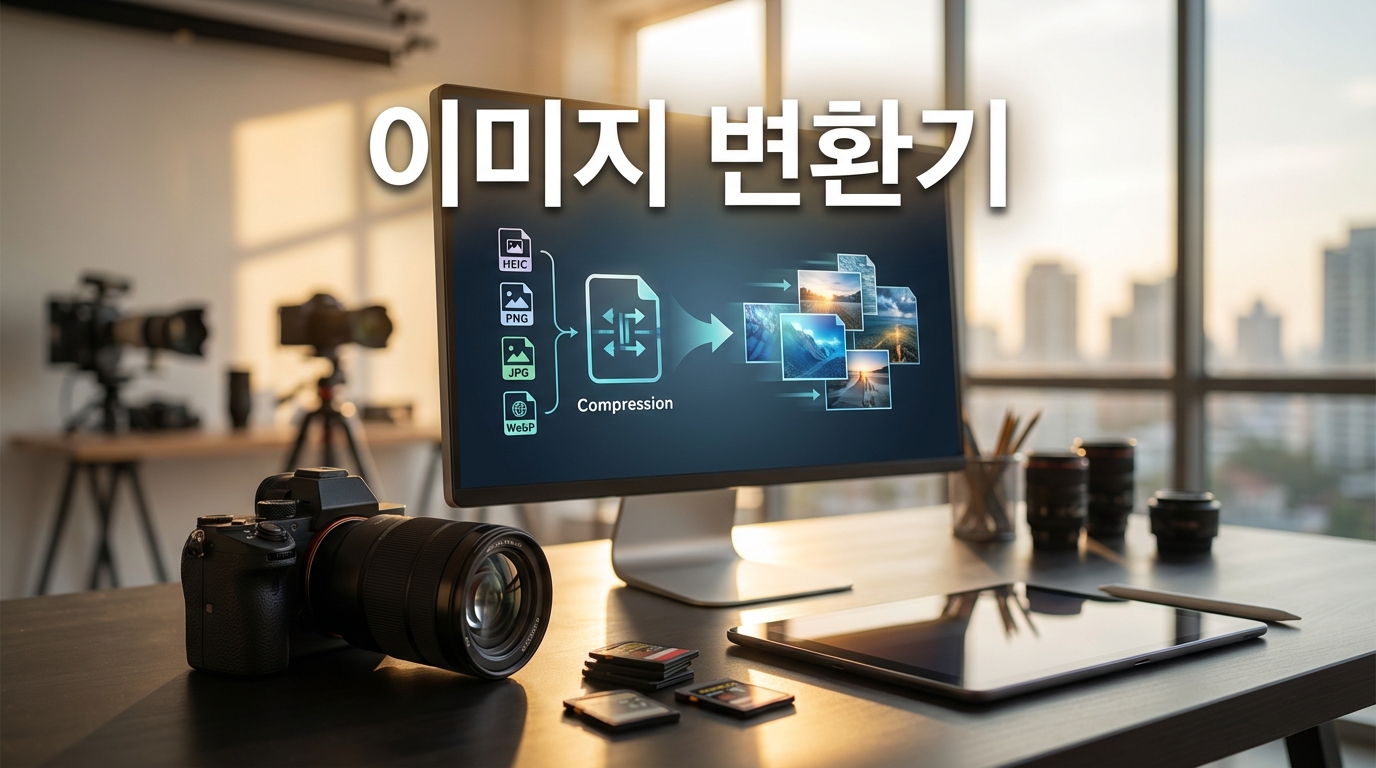
Complete Guide to the Image Converter
What Is the Image Converter?
The Image Converter is an online tool that lets you convert image formats, compress file sizes, and resize dimensions — all from your web browser without installing any software.
■ Format Conversion
Convert HEIC files from iPhones into JPG or PNG, or change between various image formats including WebP, BMP, TIFF, and AVIF. HEIC (High Efficiency Image Container) is the default photo format on iPhones and iPads. While it produces smaller files than JPG, many Windows applications and websites do not support it, making conversion a frequent necessity.
■ File Size Compression
High-resolution photos can be 5MB to 20MB in size. Using the quality slider, you can reduce file sizes dramatically while maintaining visual quality that is virtually indistinguishable from the original. This is particularly useful when you need to attach images to emails, upload to social media, or post on websites that have file size limits.
■ Dimension Resizing
Change the pixel dimensions of your images by specifying a new width and/or height. With the aspect ratio lock enabled, entering just one dimension automatically calculates the other to preserve the original proportions. This is ideal for preparing images for specific display sizes or reducing resolution for web use.
How to Use
The Image Converter is organized into three tabs, each dedicated to a specific function. Select the tab that matches your needs.
■ Format Conversion Tab
① Select the 'Format' tab at the top.
② Upload your image by dragging and dropping it onto the upload area, or click to browse and select a file.
③ Choose your desired output format: JPG, PNG, or WebP.
④ If you selected JPG or WebP, adjust the quality slider to control compression.
⑤ Click 'Convert' to start the conversion process.
⑥ Review the preview and click 'Download' to save the converted image.
■ Compress Tab
① Select the 'Compress' tab.
② Upload your image.
③ Adjust the quality slider. Around 80% offers the best balance between quality and file size reduction.
④ After conversion, you can see the percentage reduction compared to the original file.
■ Resize Tab
① Select the 'Resize' tab.
② Upload your image. The original dimensions will be displayed automatically.
③ Enter your desired width or height. With 'Maintain aspect ratio' checked, the other dimension is calculated automatically.
④ Choose an output format and click 'Convert'.
Image Format Characteristics
Each image format has unique properties. Choosing the right format depends on your intended use.
■ JPG (JPEG)
The most widely used photo format. It uses lossy compression, meaning you can significantly reduce file size by adjusting quality. Best suited for photographs and natural images. Does not support transparent backgrounds. This tool uses the mozjpeg encoder, which produces smaller files at the same quality level compared to standard JPEG encoders.
■ PNG
A lossless compression format that supports transparent backgrounds (alpha channel). Ideal for text, logos, icons, screenshots, and any image where sharp edges are important. For the same photographic content, PNG files are typically larger than JPG files.
■ WebP
A modern format developed by Google that delivers approximately 25–35% smaller file sizes than JPG at equivalent visual quality. Supports both transparency and animation. Now supported by all major modern browsers, making it the recommended format for web optimization.
■ HEIC (HEIF)
A high-efficiency format adopted by Apple starting with iOS 11. Provides the same visual quality as JPG at roughly 50% of the file size. Photos taken on iPhones use HEIC by default, but since many Windows applications and websites cannot open HEIC files, conversion to JPG or PNG is frequently needed.
■ AVIF
A next-generation format based on the AV1 video codec that offers even higher compression efficiency than WebP. Software support is still growing, but it is already supported in Chrome and Firefox.
Tips for Effective Image Conversion
■ Choose the right format for your purpose
For websites → WebP (best size-to-quality ratio)
For email and social media → JPG (most universally compatible)
For logos and icons → PNG (when transparency is needed)
For sharing iPhone photos → Convert HEIC to JPG (universal compatibility)
■ 80% quality is the sweet spot
For JPG and WebP, quality around 80% maintains visual quality that is virtually indistinguishable from the original while achieving 60–80% file size reduction. Unless you are preparing images for print, 100% quality only increases file size unnecessarily.
■ Keep web images under 1920px wide
Most monitors have a resolution of 1920×1080 (Full HD). Resizing images to 1920px width or less for web use dramatically improves page loading speed. For mobile-optimized content, 1080px is more than sufficient.
■ Process multiple images sequentially
When you need to convert several images, process them one at a time. Review the preview for each image before downloading to catch any issues. Simply upload a new file after downloading the previous result.
■ Always keep the originals
Image conversion is an irreversible process. JPG compression in particular cannot be undone — once quality is reduced, it cannot be restored. Always keep a backup of your original files before converting.